Index:


Random

  • These are a few of my favorite things.

    Raindrops on roses and whiskers on kittens
    Bright copper kettles and warm woolen mittens
    Brown paper packages tied up with strings
    These are a few of my favorite things...


    I’m often asked “Whoa, that’s a cool <thing>, where did you get it?!” — instead of having to find and send people individual links, I decided to finally put links to my favorite things all in one place – here!


    This is simply a rack mount kit to allow mounting a FortiGate 60E in a rack, keeping things a bit tidier. I’d mauch rather that they provided an actual 19″ rack device, but this isn’t bad.


    This small electric screwdriver is great for travel, and also for things like removing PCBs from inside machines, opening cases which have lots of small screws, etc. It is very similar to the Dewalt DCF680N2 Gyroscopic Screwdriver – you press the button and turn it slightly clockwise or conterclockwise. A small accelerometer detects this and turns on the motor in the correct direction, and increases or decreases speed based on how much you turn it. It takes a few minutes to get used to, but makes things like putting Ikea furniture together so so much nicer.


    These safety glasses are great – they are ANSI Z87.1-2010 certified, and come with a comfortable gasket which cuts down on the dust and grit which other classes seem to collect. They also work nicely with the 3M corded earplugs – having them connected directly to the ear pieces makes you way more likely to actually use the hearing protection, and so is well worth the money.


    Speaking of protective gear, the Miller TIG gloves are really nice: 


    They have a nice high wrist protector (I kept ending up with some space between my old gloves and my welding jacket. This would rest on the edge of the workpiece and bite me!) and a padded palm. They do run a bit small, and need some breaking in to become nice and soft.


    This is a crazy little widget. You plug basically any component into the ZIF socket, and push the Go button. It almost instantly identifies the component, and graphically displays it and the values. Zeners, MOSFET, resistors, capacitors, transistors, diodes, you name it, it identfies it. It is a hugely impressive little thing – it isn’t always perfectly accurate, but for quick “What’s this thing / what’s the pinout?” type questions it’s brilliant!


    This is a cheap-n-cheerful solder reflow oven – unfortuntely it is basically useless until it has been modded — luckily the good folk over at UnifiedEngineering have released new and impoved firmware and a nice set of instructions over here. These take around 30 minutes to complete, and make the over work really well. Unless you have them lying around you will also need a DALLAS 18B20 DS18B20 TO-92 3 Pins Wire Digital Thermometer Temperature IC Sensor


    This is the best travel adaptor I’ve found anywhere. It rolls up into a nice little package, and has a “universal” travel adaptor tucked inside the hole. The wrap-around cord is a reasonable length, the circular shape allows for multiple wall warts to be bplugged in, and the 2 built in USB charger spots work well. 


    I really like the Roost Laptop Stand for travel – it raises my laptop and changes the angle so that I don’t hurt my neck nearly as much – I use it with an Apple Magic Trackpad 2 and Apple Keyboard. While a little bit bulky, it is worth the space in my luggage. For some trips though even this is slightly too much, and so I’ve recently started using the Tendak Portable Laptop Stand 


    I make an adapter cable to go from the proprietary Ferrari battery tender to the CTEK charger connector (actually, the Ferrari branded chargers are the cheap CTEK ones with a different sticker). CTEK makes many different chargers – the CTEK  MULTI US 7002 12-Volt Battery Charger is my current favorite. 


    … and I could make an entire section on Ubiquiti Networks, but for now, I’ll just mention the “Ubiquiti Networks Unifi 802.11ac Dual-Radio PRO Access Point” — these work incrediably well, and are really easy to install, manage, etc.
     

  • IETF draft submission says document is of type “text/x-c++” (or similar)

    Sometimes when trying to submit a draft I get: 

    Expected an TXT file of type “text/plain”, found one of type “text/x-c++”


    This is because my template contains: 

    template                                                       W. Kumari
    Internet-Draft                                                    Google
    Intended status: Informational

    and”template” causes “file” to think it is C code…

  • Referring to an ID in an Internet Draft using XML2RFC

    For some reason I can never remember the syntax to refer to an Internet Draft in a draft. I wrote up a note somewhere, but I’ve managed to lose it!

    First, add the include: ?rfc include=’reference.I-D.ietf-dnsop-sutld-ps-04.xml’  This includes “draft-“, the version and .xml

    NOTE: Leave draft- off when referencing a generic draft name, and add draft- when referencing a specific version of an internet-draft.

    Next, add the refernce: target=”I-D.ietf-dnsop-sutld-ps” This does not have the “draft-“, the version and .xml. The refernce anchor can also be found by looking in the refernce itself (e.g: https://xml2rfc.tools.ietf.org/public/rfc/bibxml3/reference.I-D.ietf-dnsop-sutld-ps.xml)

    More information here: https://xml2rfc.tools.ietf.org/.


  • BMW Voice Commands


    I recently bought a 2010 BMW M3 Convertable. I really like the speech recognition, but can never remember all of the commands. I looked around, but was not able to find them online.


    Useful Short Commands
    Function Command
    Opening a music collection Music collection
    Opening the tone control Tone
    Opening the settings Settings
    Opening the computer Onboard info
    Opening the contacts* Contacts
    Displaying the phone book* Phonebook
    Opening services* Assist
    Opening BMW Assist* B M W Assist
    Opening the home address* Home address
    Opening destination entry* Enter addresst
    Opening destination guidance* Guidance


    CD / DVD Drive

    Playing back a CD C D on
    Selecting a CD Select C D
    Selecting a CD and track C D .. track… e.g. CD 3 Track 5
    Selecting a track C D track… e.g. track 5
    Opening the CD and Multimedia menu C D and multimedia
    CD and DVD* CD and DVD
    Displaying entertainment details on the split screen* Entertainment detail


    Music collection

    Calling up the current playback Current playback
    Opening a music collection Music collection
    Playing back a music collection Music collection on
    Searching for music; opening the menu Music search
    Playing back the most frequently played tracks Top fifty


    External Devices
    Opening external devices External devices


    Tone
    Opening the tone control Tone


    Radio

    FM
    Calling up the radio Radio
    Calling up an FM station F M
    Opening manual search Manual search
    Selecting the frequency range Select frequency
    Calling up a station Select station re.g: W-PLJ


    AM
    Calling up an AM station AM
    Opening manual search Manual search


    Satellite radio
    Calling up the satellite radio Satellite radio
    Switching on the satellite radio Satellite radio on
    Selecting a satellite radio channel Satellite radio channel… e.g. channel 2
    Opening the stored stations Presets
    Choosing a stored station Select preset
    Selecting a stored station Preset… e.g. stored station 2


    Telephone
    Opening the Telephone menu Telephone
    Displaying the phone book Phonebook
    Redialing Redial
    Displaying accepted calls Received call
    Dialing a phone number Dial number
    Displaying the list of messages Messages
    Displaying Bluetooth devices Bluetooth


    Navigation

    General information
    Navigation menu Navigation
    Opening destination entry Enter address
    Entering an address Enter address
    Opening destination guidance Guidance
    Starting destination guidance Start guidance
    Ending destination guidance Stop guidance
    Opening the home address Home address
    Opening the route criteria Route preference
    Opening the route Route information
    Switching on the voice instructions Switch on voice instructions
    Repeating a voice instruction Repeat voice instructions
    Switching off the voice instructions Switch off voice instructions
    Displaying the address book Address book
    Displaying the last destinations Last destinations
    Opening the traffic bulletins Traffic lnfo
    Special destinations Points of interest


    Map
    Displaying the map Map
    Map facing north Map facing north
    Map in the direction of travel Map in direction of travel
    Perspective map Map perspective view
    Automatic map scaling* Map with automatic scaling
    Changing the scale Map scale


    Split screen* settings
    Split screen Switch on splitscreen
    Switching off the split screen Turn off split screen
    Adapting the split screen Split screen content
    Split screen, current position Split screen current position
    Split screen, map facing north Split screen map faclng north
    Split screen, direction of travel Split screen map in direction of travel
    Split screen, perspective Split screen perspective
    Expanded intersection zoom on the split screen Splitscreen Exit ramp view
    Split screen scale … meters* Split screen scale … meters e.g. split screen scale of 100 meters
    Split screen scale… kilometers* Split screen scale … kilometerst e.g. split screen scale of 5 kilometers
    Split screen, highlighting traffic bulletins Split screen, Traffic lnfo map
    Split screen, computer Split screen onboard info
    Split screen, trip computer Split screen trip computer
    Automatically scaling the split screen Split screen automatic scaling


    Destination guidance with intermediate destinations
    Entering a new destination Enter address
    Trip list Stored trips


    Contacts
    Opening the contacts Contacts
    My contacts My contacts
    New contact New Contat


    BMW Assist
    Opening BMW Assist BMW Assist
    Opening BMW Search BMW Search


    Vehicle information
    Opening the computer Onboard Info
    Opening the trip computer Trip computer
    Opening the vechile information Vechile info
    Opening the vechile status Vechile status


    Settings
    Opening the main menu Main menu
    Opening the settings Settings
    Opening the options Options
    Settings on the Control Display Control Display
    Opening the time and date settings Time and Date
    Opening the language and unit settings Language and units
    Opening the speed limit settings Speed
    Opening the light settings Lighting
    Opening the door lock settings Door locks


    Equipment
    Opening the air conditioning settings Climate
  • Determing Unknown Baud Rate

    Determing Unknown Baud Rate

    Often times I end up with some sort of device that has an RS-232 port, but that I don’t have any idea what baud rate it uses, etc. I used to just hook it up to a terminal and try all of the different baud rates while trying to get something intelligible to show up. Unfortunately there are a large number of baud rates to choose from and getting the device to output anything is often tricky, especially if you don’t know the pinout (although a Black Box Clever Cable makes this a little more bearable).


    Eventually I got fed up with this, especially after I just couldn’t find the right parameters for an LG IrisAccess 2200 iris scanner (for which I am still looking for docs) and so I decided that I needed to some up with a better solution, so I took an RS-232 breakout box and soldered on some test-points so I could hook it up to a scope.


    You simply hook up an oscilloscope to the TX pin (just keep guessing till you find it!) and set the scope to trigger on a pulse. You then measure the time of the shortest pulse and take the reciprocal to figure out the baud rate (ok, actually I wrote this page so I would have some place to put the table so I can just look up the answer because typing bc is too hard :-).


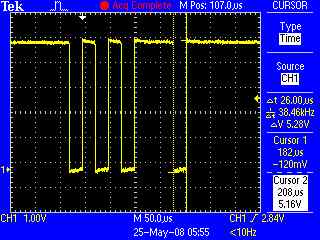
    Here is an example:

    From this we can see that the period of the shortest pulse is 26µs — 1/26µs (1/26*106) = 38461 — round this to the closest real baudrate, 38400, or 34.8k

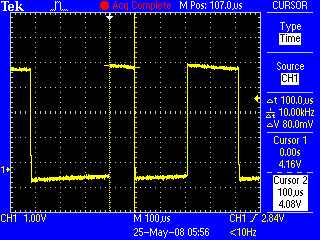
    Another example:

    Here the shortest pule is 100µs — this is 1/100*106 or 10,000bps — this is obviously not a real baud-rate, but it is really close to 9,600bps.

     
    Time Baud Rate
    3333µs (3.3ms) 300
    833µs 1200
    416µs 2400
    208µs 4800
    104µs 9600
    69µs 14400
    52µs 19200
    34µs 28800
    26µs 38400
    17.3µs 57600
    8µs 115200
    4.34µs 230400


    If you are unable to send a break command with your terminal program (to a 9600baud device, like a Cicco switch, etc), this often works…

    Change the baud rate to 1200 baud, N,8,1.  Reboot the device, hold down the space bar for 10 – 15 seconds. Change the baud rate back to 9600. Done.

    A space at 1200 is close enough to a break at 9600 to satisfy most devices.