Index:


Electronics

  • Fixing Bose Sleepbuds refusing to charge problem.

    I have a pair of Bose Sleepbuds, which I exclusively use when traveling.

    They are good at blocking out noise from hotel A/C units, elevators, people wandering up and down the hallways while having loud conversations, etc. Unfortunately they have a well known issue – the sleepbuds themselves get charged by a special charging case, and the Battery Management System (BMS) won’t charge the battery in the case if it falls below a certain voltage.

    This means that if you don’t regularly charge the case (for example because you are not traveling because of Covid), the battery will drop below this voltage, and the BMS won’t wake up and charge the battery.

    This short writeup explains how to make them work again:

    Step 1: Peel the bottom rubber cover off


    This is simply held on with some double-sided adhesive. Warming it up will make it come off easier and allow you to more cleanly reuse the adhesive. Otherwise, just pull it and use new adhesive (or just leave it off and save a gram or two in your luggage!). Next, remove the really small torx (or security torx, I cannot remember which) screws and pop the back off.  

    Step 2: The root problem is that the BMS won’t charge the battery once it falls below a certain voltage, so all we need to do is momentarily raise the voltage about that point. 

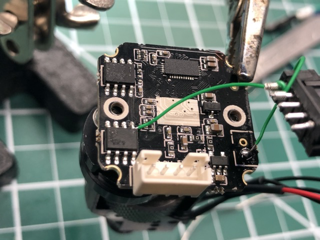
    Simply momentarily apply 3V across the battery – I used TP1 and Ground, and will soon update this post with better pictures showing where. Note that the battery implies that it is  7V (7V 225mAh), but this is not the case, it is actually a standard 3.7V cell.

    This at least got it working so that I could use them on a trip, but I’m planning on sometime extending these points so that thay are externally accessible, or repurposing the reset button to bridge from the USB input to the battery so that I can kick-start it with a paperclip.  

  • Westover P5000 scope: Making an awful device marginally less awful

    Westover P5000 scope: Making an awful device marginally less awful

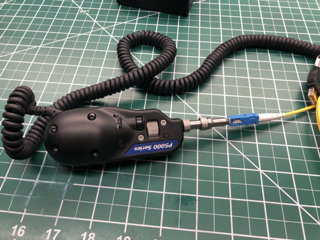
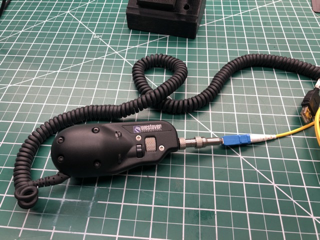
    I have a Westover Scientific P5000 fiber scope. I like the device itself, but the last time ThermoFisher released software for it was 2010, and it required Windows® XP or Vista Operating System (or, with much fighting, possibly Windows 2000). Based on the price of the device this is annoying, but ThermoFisher seems to often abandon their products.

    Anyway, I haven’t been able to find a nicer fiber-scope, and it was really annoying me that I could no longer use this one – it’s basically just a camera and some funny optics, and so I decided to try and fix it (the other alternative was tidying my office,  and that sounded like less fun…) I ended up swapping out the sensor and electronics for a cheap webcam module. Here is my build journey in case anyone else wants to do the same…
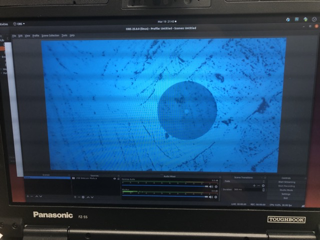
    IMG 7006  IMG 6980


    It uses Torx screws (for some reason the optics module uses security Torx).

    Inside is an optics package, a small sensor board, and a larger video to USB board. Connecting the two boards together is a flat-flex cable. It uses the same cable that the Raspberry Pi camera module uses; I was initially excited, hoping that this might be a standard pinout, and I could just slap a Raspberry Pi in intead, but no such luck. I pulled out the electronics, and then took apart a Logitech webcam, hoping that I could replace the sensor module with the guts from the Logitech – this almost worked, but like the fiber scope the webcam has two boards, and the connector on the sensor board faces “forward”, which would get in the way of the optics package. The connector seems to be 0.2mm pitch, and so it wasn’t really fesiable to desolder it and run nrew traces or move it to the back of the board.

    Instead I found a small USB webcam module – ELP megapixel Super Mini 720p USB Camera Module with 120degree Lens and replaced the sensor and electronics with this. Unfortunatly it did require carving a way a little bit of the casing with a Dremel tool, and I got a  bit impatient and cut all the way through, but it still looks and works well.


    Picture of the optics module. It is basically a microscope, and a blue illumination LED, with a 45-degree beamsplitter to allow the LED to illuminate the front surface of the fiber. The LED sits in the front, and seems to be powered by ~3.3V
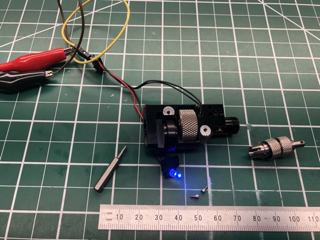
    IMG 6979 


    The webcam module – this was $29USD from Amazon. The webcam module I chose has a 120 degree field of view, but this isn’t really important, because I remove all of the optics and am only using the sensor. The module itself on a (I’m guessing?) standard size PCB, but has “slots” to allow the outer part of the board to be removed.
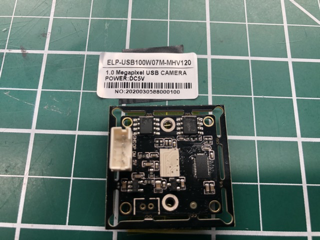
    IMG 6984

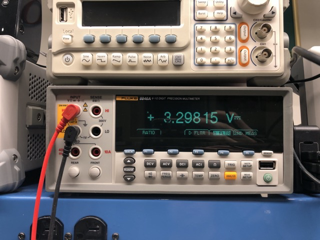
    Finding a handy 3.3V source to power the LED. There is a handly looking set of contacts (lower left), unfortunatly they are GND and USB 5V. Probing around I found a handy 3.3V supply
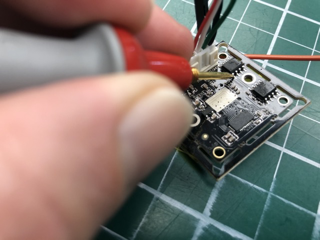
    IMG 6986  IMG 6985

    IMG 6993

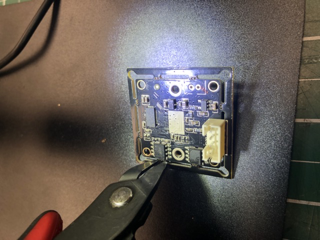
    Snipping off the “break away” outer board. I’m assuming that both the outside and inside boards are a standard size
    IMG 6988 

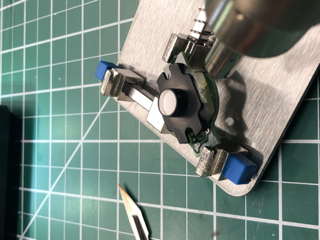
    Removing the original sensor mount from the sensor board. The adapter screws into the back of the optics package, and protects to sensor. I used a heat gun to heat up the mounting glue, and popped it off. After removing the lens assembly from the new webcam module, it slides nicely into this mount, and a dab of hotglue holds it nicely in position. The adapter has some slots to allow fine-tuning of the sensor position.
    IMG 6989

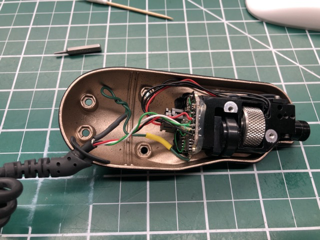
    In order to make this particular webcam module fit, I had to trim the case slightly with a Dremel tool – I’m sure I could have found a smaller camera module (I considered using an endoscope, but that seemed like more trouble than I wanted to deal with). I got somewhat impatient / over-enthusiastic, and ground through the edge of the case, but a smaller board or a bit more patience should solve this. I also added some pennies to give the unit a slightly nicer heft. 
    IMG 7001

    IMG 7006 IMG 7007

    As it now contains a standard webcam, this now works perfectly on Linux and Apple macOS X devices without any sort of drivers

    IMG 6980


  • Fixing a Joule Sous Vide motor / seal

    Fixing a Joule Sous Vide motor / seal

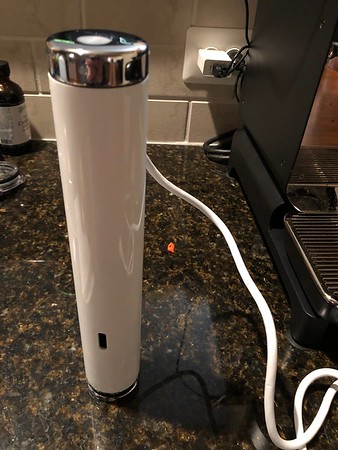
    We have a Joule sous vide which recently developed an issue – the motor which drives the impeller started sounding like it was struggling, and then one day it just stopped in mid cook. 

    Joule

    We do not have particularly hard water, but I tried the standard “run it in a vinegar / water solution” – this made a tiny improvement, but not enough to make a useful difference. I looked some online, but wasn’t able to find any repair instructions – there were a number of posts showing that bits are glued in, and so it cannot be disassembled easily. 

     Anyway, I was not happy throwing it away, so I decided to try fix it – this worked for me, it may or may not work for you as well. Obviously, do this at your own risk, I take no responsibility for, well, anything…

     Firstly, get some thin silicon oil – I use “Super Lube 56104 Silicone Oil 100 CST” – you are looking for something thin, silicone grease won’t work for this.


    Flip the Joule over, and use some tape to block off the water outlet – I used Kapton tape because it was handy, and knew that the adhesive would survive the oil.


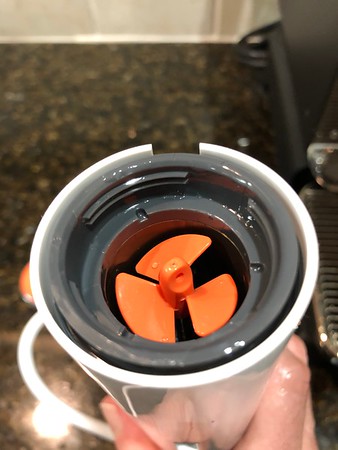
    Remove the impeller – it has a small hole in it specifically for using a fork to pop the impeller off.

    Image of impeller

    Squirt a little bit of the oil in (another advantage of Kapton tape is that you can see the liquid level) – I filled it to around 1/2 way up the water exit hole. Now, leave it to sit for a few hours. Every now and then wiggle the shaft – it is remarkably stiff, and so can take a fair bit of force, but don’t push too hard or you might bend it. Basically, you want to try get some of the oil to slide down the shaft so it lubricates the seal.

    After a few hours I was getting impatient, and so I bent a paperclip into a small hook, chucked it in a drill, and used this to spin the impeller for a while. After I’d done this the shaft was noticeably easier to turn, so I flipped it over and tested it — and it now runs like new…


  • Improving the Airconsole LE

    Improving the Airconsole LE

    I’ve long been a fan of the Airconsole portable Wifi / Bluetooth to Serial devices. They always work well, they connect to anything, and it is really nice to be able to have a console connection without having to ballanve your laptop on the edge of a rack / router / whatever.


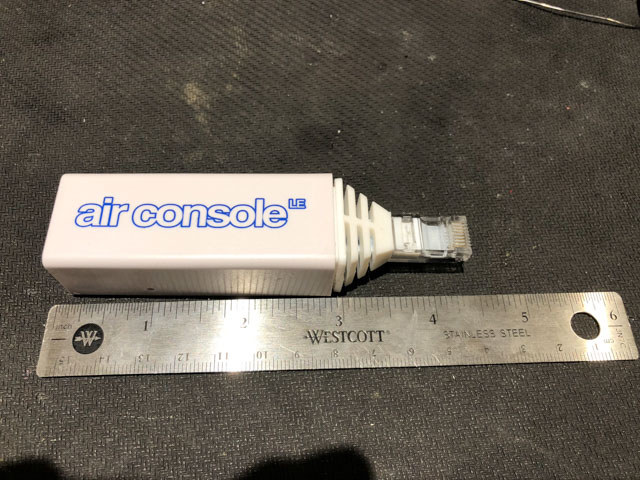
    They recently released the Airconsole LE – a portable, long battery life BLE based unit. Unfortunatly it is much larger than it needs to be – and I mainly carry a console server for emergency use. If it takes up too much space in my bag, I won’t carry it, and then it is of no use.

    Don’t get me wrong – Get Console / Airconsole are still awesome, this particular prodict of theirs could just be even better!

    IMG 5609


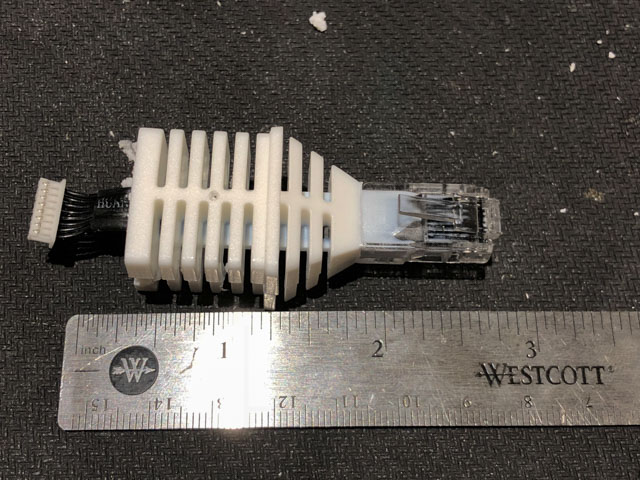
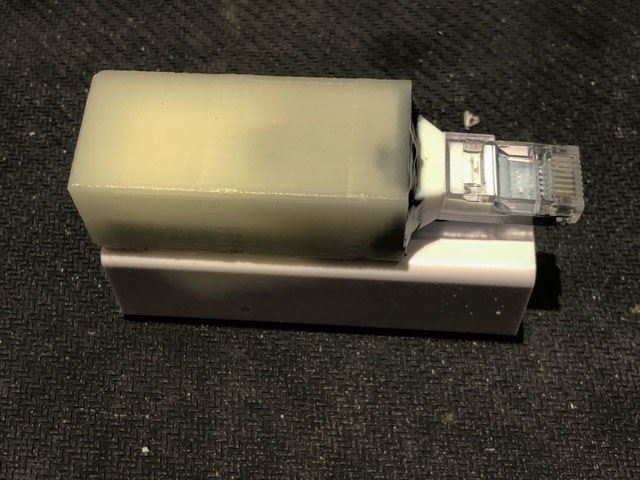
    The huge majority of this size comes from the comically large RJ45 connector – I get that they built it ruggedly so that it would survive being knocked about / used as a handle for carrying switches around, etc, but this is taking it a bit far!!

    IMG 5610


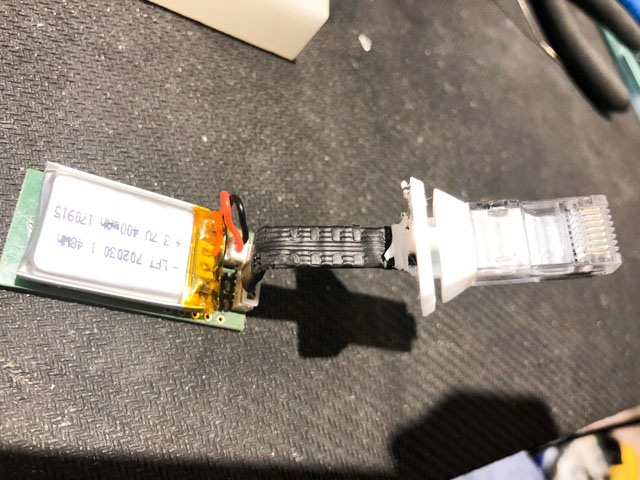
    I ended up disassembling it and using a dremel tool to cut away the majority of the strain releif on the back of the connector.

    IMG 5612


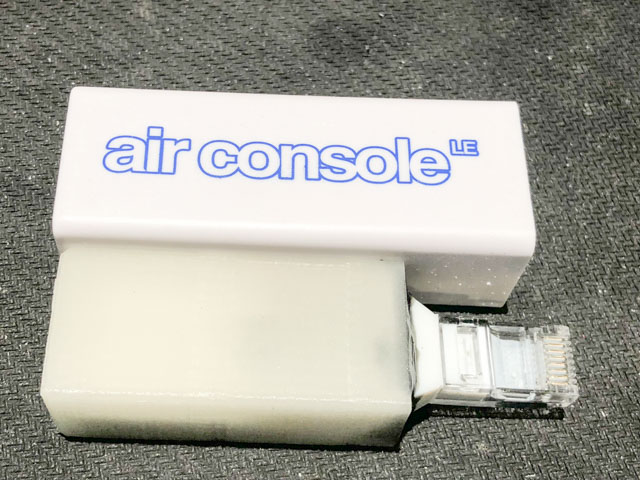
    I then printed a 3D case out of glow-in-the-dark fillament. Partly this was because this was what was already loaded in my printer, but also so that it might be a little easier to find in the depths of my bag. It is now almost 1/2 as long, and much thiner and narrower as well (the new case slides competely inside the old one 🙂


    IMG 5613

    IMG 5614


  • Repairing a Haas Rotary Table controller

    Repairing a Haas Rotary Table controller

    A friend of mine has a Haas 4th axis / rotary table, which he wants to drive from a Matsuura CNC mill. Unfortunately, no matter parameters and options what we tried we were unable to talk to the HAAS controller over the RS-232 port. 

    This is a fairly common device, and so I figured I’d provide some information on repairing it.

    I recently ran into an issue with a “Datum PRS-50 Cesium Beam Primary Reference Source” which I couldn’t talk to using any of my USB to Serial converters – after some debugging I figured out that this was because all the USB->Serial devices I tried seem to only output 0V to +8-10V, while the spec calls for -5-25V to  +5-25V. This works for “modern” devices, but not for some older ones, and so needed to use a machine with a “real” serial port for the PRS-50 (as a side note, if anyone knows of a USB to RS-232 which actually does full voltages, please let me know!). I figured that this might be the same issue with the HAAS controller, and so tried with a desktop with a known good serial port, but this didn’t help, and so I decided to dig a bit deeper.

    Being made in 1995, this Haas controller is all through-hole DIP construction.


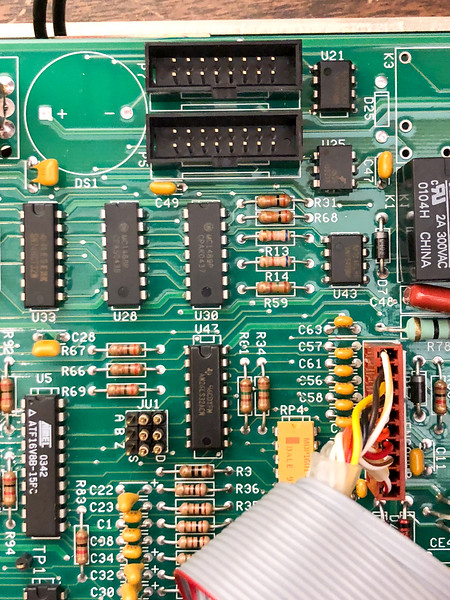
    The controller has 2 serial ports, one Upstream (to the CNC machine / PC), and one Downstream (for daisy-chaining controllers). I opened it and first checked the connectivity from the serial port to all of the pins on the ribbon cable, and then to the rear of the board — the IDF connector was slightly loose but seemed to make good enough connectivity. I then ran it on a workbench and hooked it up to an oscilloscope and traced the serial signal. The input goes through an MC1489P Quad Line EIA-232D Receivers, which then hands the signal off to an NEC PD71051 Serial Control Unit (which receives serial data streams and converts them into parallel data characters) which finally hands this to a Z80 series CPU. Return traffic (which only seems to come in response to “xP” commands) goes through the PD71051 and then an MC1488P Quad Line EIA-232D Driver

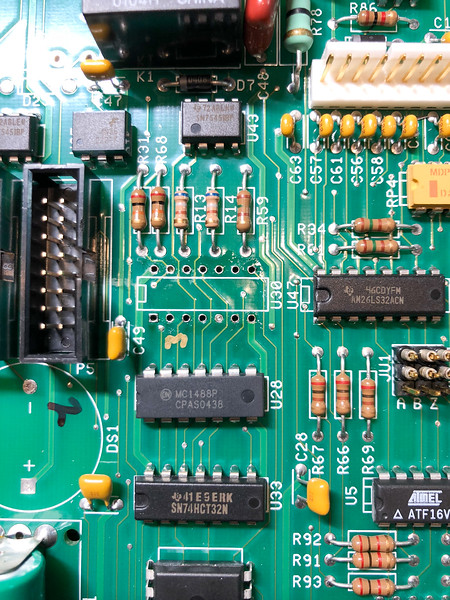
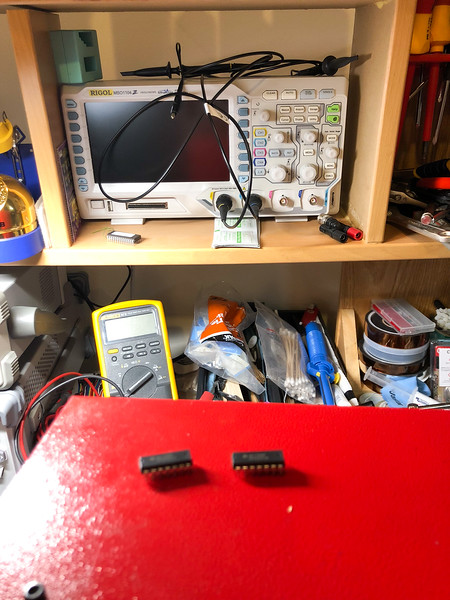
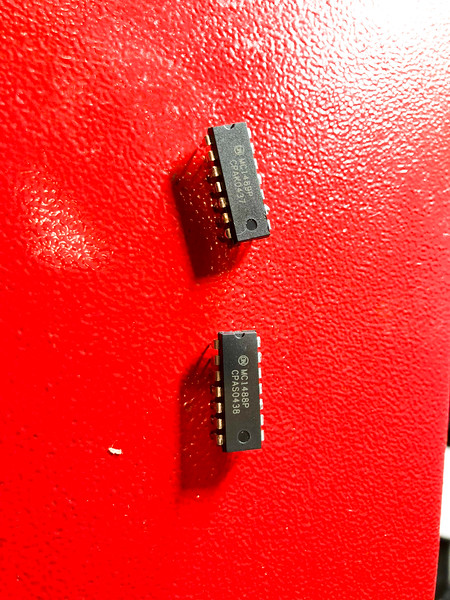
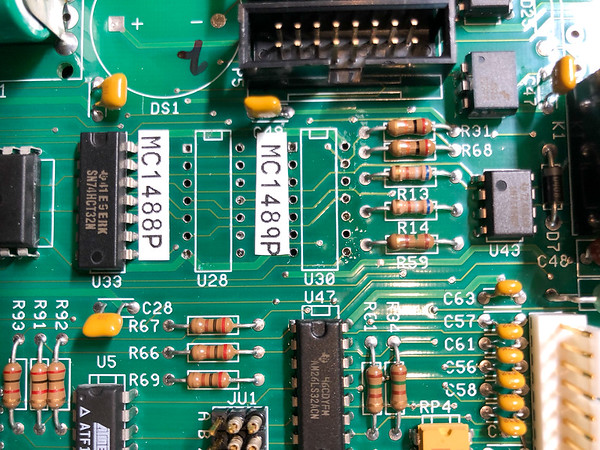
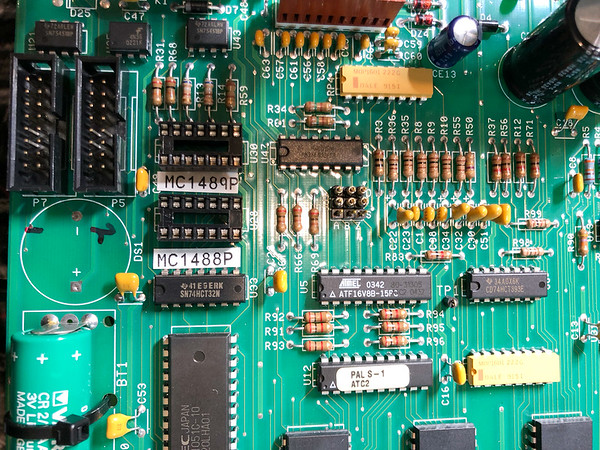
    Tracing the serial signal showed that it wasn’t arriving at the PD71051. The obvious culprit here is the MC1489, and so I desoldered this and the MC1488, installed sockets (so future replacements are easier) and installed new ones.

    Removed MC1489  Removed chips 

    Fixed

    Removed both Socketed 

     After testing this on the workbench and checking the signal with a scope I could now see the serial signal arriving at the MC1489P, but didn’t bother hooking up a protocol analyzer to check the output – instead, I just sent an XP command, got back “01” as the response, buttoned it al up and tested it — and now it works.


  • Geiger counter based RNG

    Geiger counter based RNG

    Whenever you read a (good) cryptography book they discuss the difficulty in generating truly random numbers. The standard “random” numbers thay you get from things like the C rand() function is actually a psudo-random number — it is deterministically generated by applying a function (often a hash) to an input seed. The seed usually generated from some external source, such as the interval between packets arriving on the Ethernet interface, keyboard timing, etc. The better pusudo-random number generators (PNRG) continue to feed external entropy data into the system to try and increase the randomness of the data.

    While it may be hard to do, lots of cryptography requires very good (unpredicatable) random data — as a recent example, take the recent CVE-2008-0166 vulnerability. The short version (longer, better written version here) is that valgrind (a debugging tool that, amongst other thing, checks to make sure that you are not reading garbage from uninitialized memory) was complaining that OpenSSL was reading some uninitialzed memeory and using that data. Someone got annoyed with the warning and without completly undertanding the function that was doing this, simply commented it out (actually, he did try and figure out the reason, checked with the OpenSSL list, etc), and so stopped valgrind complaining. Unfortunatly, the uninitialized data that valgrind was complaining about was used as entropy to the PRNG function and so the amount of entropy was decreased (and you thought it took work to decrease entropy!). The proctial upshot of this is that the PRNG was no longer as random and SSH keys generated form this ended up being predictable — there were only 32,768 different keys that would be generated. Thils means that you could simply generate all of the possible keys and try them sequentially until the system let you in — and hilarity ensued. The importance of true randomness (and the difficulty in generating it) for various applications even lead the Rand Corporation to publish a book full of randomness — for only USD $90 you too can purchase “A Million Random Digits with 100,000 Normal Deviates


    In order to make the output of your PRNG as random as possible, you should pour more entropy into the pool — there are various hardware devices for doing this, such as thermal noise, avalanche (or Zener breakdown) noise from a diode, shot noise, etc.


    Intel used to make a motherboard chipset (i810) that included a good hardware number generator, but unfortunately have taken this out of newer chipsets. There have been some cute random number generation systems, such as SGI’s lavarnd, which basically involved pointing a webcam at a lava lamp. A similar project (that stole the name) is LavaRnd which uses the chaotic noise from a CCD in darkness, but the ultimate source (and the one that all of hte textbooks use) is radioactive decay.


    While all of the textbooks mention radioactive half-live as a great source of entropy, you don’t often see this implemented — so, this seemed like a fun project to do.


    The basic plan is to take an old Geiger counter and point it at a source of radiation — like the small Americium 241 pellet in an ionising smoke detector. I will then take the (audio) output of the Geiger counter and feed it to an interface that will connect to the serial port on a PC and watch the interval between “clicks”. If the most recent interval is greater than the previous interval I’ll count that as a 1, if less I will count it as a 0, and if equal, I’ll just drop the current interval.


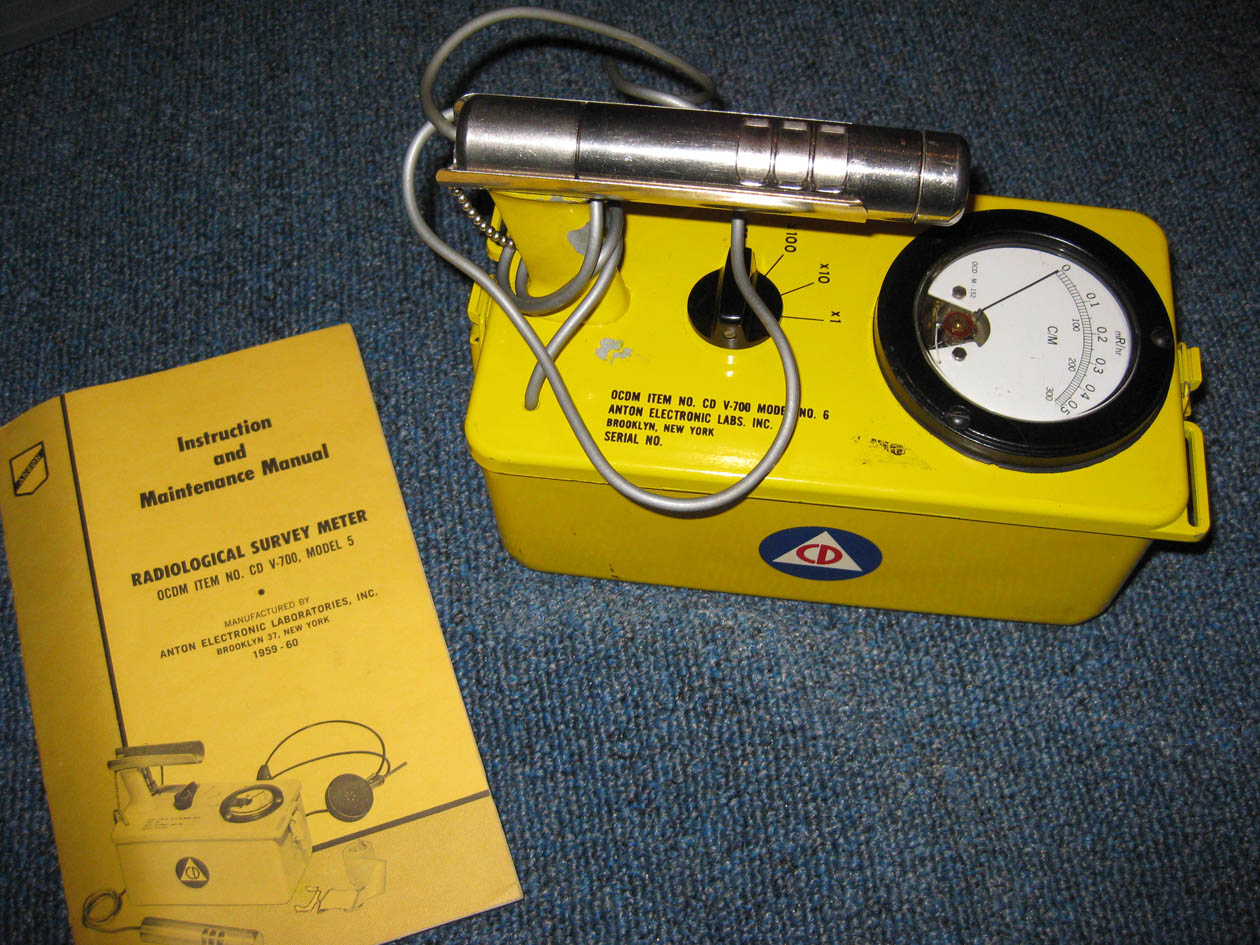
    I have some Gieger counters that were originally designed for civil defence (back during the heady days when Russian nuclear attack was imminent) and just need to design an RS-232 interface. I m currently planning on using an OpAmp as a high impedance amplifier and driving an opto-isolator that will be connected to the CTS pin.


    geiger_box


    geiger1


    geiger_sch1

    Oh! No page on PRNGs would be complete without mentioning the Blum Blum Shub PRNG — I don’t have anything useful so say about it, but, with a name like that, how could I NOT mention it?! In fact, I am going to try squirrel away a reference to it on every page  from now on…

  • Determing Unknown Baud Rate

    Determing Unknown Baud Rate

    Often times I end up with some sort of device that has an RS-232 port, but that I don’t have any idea what baud rate it uses, etc. I used to just hook it up to a terminal and try all of the different baud rates while trying to get something intelligible to show up. Unfortunately there are a large number of baud rates to choose from and getting the device to output anything is often tricky, especially if you don’t know the pinout (although a Black Box Clever Cable makes this a little more bearable).


    Eventually I got fed up with this, especially after I just couldn’t find the right parameters for an LG IrisAccess 2200 iris scanner (for which I am still looking for docs) and so I decided that I needed to some up with a better solution, so I took an RS-232 breakout box and soldered on some test-points so I could hook it up to a scope.


    You simply hook up an oscilloscope to the TX pin (just keep guessing till you find it!) and set the scope to trigger on a pulse. You then measure the time of the shortest pulse and take the reciprocal to figure out the baud rate (ok, actually I wrote this page so I would have some place to put the table so I can just look up the answer because typing bc is too hard :-).


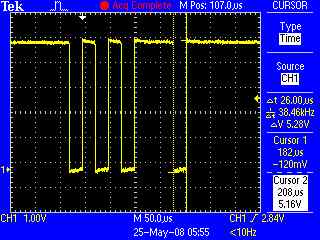
    Here is an example:

    From this we can see that the period of the shortest pulse is 26µs — 1/26µs (1/26*106) = 38461 — round this to the closest real baudrate, 38400, or 34.8k

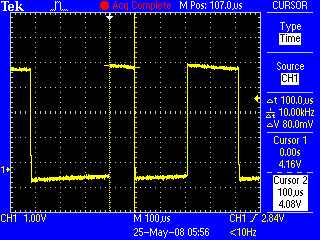
    Another example:

    Here the shortest pule is 100µs — this is 1/100*106 or 10,000bps — this is obviously not a real baud-rate, but it is really close to 9,600bps.

     
    Time Baud Rate
    3333µs (3.3ms) 300
    833µs 1200
    416µs 2400
    208µs 4800
    104µs 9600
    69µs 14400
    52µs 19200
    34µs 28800
    26µs 38400
    17.3µs 57600
    8µs 115200
    4.34µs 230400


    If you are unable to send a break command with your terminal program (to a 9600baud device, like a Cicco switch, etc), this often works…

    Change the baud rate to 1200 baud, N,8,1.  Reboot the device, hold down the space bar for 10 – 15 seconds. Change the baud rate back to 9600. Done.

    A space at 1200 is close enough to a break at 9600 to satisfy most devices.